 EAS Security
 EAS Gate
 Security Tag
 EAS Accessories
 Gadgets
 Convex Mirror
 Road Barrier
 Burglar Alarm
 Calling System
Keeping School Driver and Helper Records Together with eBiddyaPro
November 14, 2026

Keeping School Driver and Helper Records Together with eBiddyaPro
School transport administration involves more than maintaining a list of vehicles. The people supporting those vehicles also need accurate, accessible records. When a school needs to contact a driver, identify a helper, or review recorded license information, searching through separate notebooks and messages can make a straightforward task unnecessarily difficult.
For educational institutions in Bangladesh, keeping these records organized can support everyday coordination between administration, transport supervisors, and other authorized employees. However, storing information is only the beginning. A useful record must also be accurate, current, associated with the correct institution, and available to the right people.
The eBiddyaPro Driver & Helper Manage screenshot shows a dedicated place for organizing transport personnel information. Its table includes Institute, Type, Name, Mobile, Blood Group, NID Number, License Number, Status, and Action. The page also provides a New button, search controls, pagination, and editing and deletion icons.
This guide explains how schools can use that visible structure to organize driver and helper records. It also distinguishes record storage from identity verification, license verification, daily duty assignment, and wider transport operations. Those distinctions help institutions set realistic expectations and develop a more dependable administrative process.
What Driver & Helper Manage Shows in eBiddyaPro
The supplied screen places Driver & Helper Manage within the Transport section of eBiddyaPro. This gives administrators a specific location for reviewing transport personnel rather than mixing their information into an unrelated list.
Each row brings several identifying details together. The Institute column associates the displayed record with an institution. Type distinguishes the recorded personnel category, while Name and Mobile support identification and communication.
The table also includes Blood Group, NID Number, License Number, and Status. Edit and delete icons appear under Action.
These visible fields establish the scope of the listing, but they do not reveal every detail of the creation form. Required fields, validation rules, attachment support, and permission settings must be confirmed in the institution’s own version.
The most reliable approach is to use the screenshot as a guide to the available record structure without assuming that every related transport function is included on this page.
Why Organized Personnel Records Matter for Schools in Bangladesh
A school’s transport arrangements may involve directly employed staff, contracted personnel, or another approved operating arrangement. Whatever the arrangement, administrators need to know which person a record refers to and how to reach them.
Consider a transport coordinator who receives a report about a delayed vehicle. The immediate administrative task may be to identify the relevant personnel and contact the appropriate person. An outdated number or ambiguous name makes that task harder.
Organized records can also support handovers between employees. When a new administrator takes responsibility, essential information should not depend entirely on a predecessor’s personal phone.
This is a practical reason to maintain a shared institutional record. It does not mean that one software page replaces transport supervision, staff training, vehicle checks, or the school’s operating procedures.
Keep Driver and Helper Roles Clearly Identified
The Type column is important because a driver and a helper perform different functions. Their records should describe their actual responsibilities accurately.
A helper record should not be labelled Driver merely because both individuals work with the same vehicle. Similarly, a driver’s information should not be entered under another person’s name for convenience.
The screenshot contains one visible Driver entry. It does not show the complete list of Type options or the rules applied to each category.
When adding personnel, confirm the available categories and select the appropriate one. If someone’s responsibilities change, review the record through the institution’s authorized update process.
Clear role identification helps users interpret the list correctly and avoids making assumptions about what each recorded person is authorized to do.
Associate the Record with the Correct Institute
The Institute column provides essential context when eBiddyaPro is used to manage more than one educational institution.
Before creating or updating a record, confirm which institution the information belongs to. Similar names, shared management, or common transport arrangements can otherwise cause confusion.
A record associated with one institute should not automatically be treated as available to every other institute in the workspace. The screenshot does not establish cross-institute sharing or access behavior.
It also does not display a Branch column. Therefore, this page should not be described as providing a visible branch assignment facility based on the supplied image alone.
If branch-specific transport administration is required, confirm where that relationship is managed and how users can identify the correct personnel for each location.
Use Names Consistently
Names are easy to enter inconsistently. A person may appear under a full name in an identity document, a shortened name in a phone contact, and a nickname in a transport notebook.
Establish a consistent naming practice for the school’s records. Where appropriate, match the official name used in the verified source document.
If a familiar name is needed for everyday communication, determine whether the supported form provides an appropriate place for it. Do not assume that an additional nickname field exists.
Before adding a new entry, search for existing records using the available identifying information. A slightly different spelling should not automatically lead to a duplicate record.
Consistent names make searching easier and help administrators distinguish people who share common names.
Confirm Mobile Numbers Before Relying on Them
The Mobile column supports contact management, but a number is useful only when it is current and correctly associated with the person.
Confirm the number with the driver or helper during onboarding and whenever a change is reported. Check the digits rather than assuming that a copied number is accurate.
Schools should also clarify how the number will be used. A personnel contact record and a publicly distributed parent contact list serve different purposes.
The presence of a mobile number does not prove that SMS notifications are enabled, that messages will be sent automatically, or that parents can view the information.
Those functions would require confirmation elsewhere in the school’s eBiddyaPro setup. This page visibly stores contact information; it does not demonstrate every communication workflow.
Treat NID Information as Identity Data
The NID Number column provides space in the listing for an identity-related reference. Entering a number does not establish that the person’s identity has been verified.
The school should follow its approved identity-checking process and compare information with the relevant source. A matching-looking number alone is not a complete verification procedure.
Avoid using invented values to fill a gap. If information is unavailable or a document needs clarification, resolve that issue through the appropriate administrative process.
Identity information also deserves controlled access. Staff who need to call a driver may not need to see or receive a complete identity number.
When preparing an internal report or sharing a screenshot, consider whether the full NID information is necessary for the recipient’s task.
License Storage and License Verification Are Different
The License Number column helps organize a recorded reference. It does not independently confirm that the license is authentic, current, or appropriate for a particular vehicle.
Bangladesh Road Transport Authority provides a Service Portal with license-related services and verification routes. Schools should use the relevant official process when verification is needed rather than treating a number saved in eBiddyaPro as a completed check.
A school’s review should establish which person the license belongs to and what information the official source supports.
The supplied eBiddyaPro screenshot does not demonstrate a BRTA integration or an automatic verification result. It would therefore be inaccurate to advertise this listing as a government verification service.
The administrative benefit is that the school has a consistent place to find the recorded reference when conducting its own review.
Do Not Assume Renewal Tracking Is Included
A license number and a license renewal schedule are separate pieces of information.
The supplied listing does not display an expiry-date column, renewal reminder, or verification-date field. These features may or may not exist elsewhere, but they are not established by this screen.
If the institution needs to track document review dates, first check the supported creation and editing forms. Confirm whether the information can be recorded and whether reminders are available.
If the relevant capability is unavailable, maintain the review responsibility through another approved institutional process.
The important point is to avoid a false sense of completion. A personnel record can be present and organized while a separate document review still remains outstanding.
Handle Blood Group Information Carefully
Blood Group is visible in the supplied table. Like other personnel information, it should be recorded accurately and used within an appropriate administrative context.
Do not guess a blood group or copy an unconfirmed value simply to complete the row. Follow the school’s approved process for obtaining and recording the information.
A stored blood group should not be presented as a medical verification result. Clinical decisions require the appropriate professional checks.
Schools should also consider whether everyone with routine contact responsibilities needs access to this information. A transport contact task usually does not require distributing every personal field in the record.
The aim is accurate, proportionate recordkeeping rather than collecting or sharing information without a clear operational purpose.
Active Does Not Mean Currently on Duty
The screenshot shows an Active status beside the visible record. That is a software record status, not proof of the person’s current location or duty.
Active does not establish that the individual is driving today, assigned to a particular vehicle, available for a call, or physically present at school.
It also should not be interpreted as confirmation that every supporting document has been verified.
The exact meaning of Active should be understood through the institution’s configuration and operating process. Staff should know whether it represents a usable personnel record, an administrative state, or another supported definition.
Daily duty assignment and personnel record status should remain distinct concepts. This helps prevent an administrator from drawing operational conclusions from a general label.
Understand the Search Controls
The main search field explicitly mentions name, mobile, NID, or license. This indicates useful ways to locate a personnel record when the user has different identifying information.
For example, an administrator may have a mobile number but not remember the exact spelling of a name. Another user may need to locate a recorded license reference.
A second Search field is visible above the table. Its relationship with the main search should be checked rather than assumed.
The page also includes entries-per-page controls and pagination. If a record is not immediately visible, review search terms and the current page before concluding that it has been deleted.
Searching is most effective when the underlying information has been entered consistently.
Review Before Adding a New Record
The New button provides a route to add personnel information. Before opening a new entry, establish whether the person already has a record.
Search using more than one available identifier where appropriate. This can prevent duplicates created under different spellings or old phone numbers.
Prepare the information the institution is authorized to collect and confirm its source. The full form should then determine which fields are required and which are optional.
The listing does not show document upload fields, emergency contact details, or a residential address. These should not be promised as supported features without checking the actual form.
A clear onboarding process makes the software entry more dependable because the administrator is recording reviewed information rather than collecting uncertain details while typing.
Update Existing Records Through a Defined Process
The edit icon indicates a way to modify the displayed record. Schools should decide who can request a change and who is responsible for entering it.
A changed mobile number may be straightforward, while a change to identity or license information may need additional confirmation.
After editing, revisit the record and check that the intended value appears correctly. A successful save message and a verified result together provide stronger assurance than assuming the change was stored.
The screenshot does not demonstrate approval steps or a detailed change history. If those are needed, confirm their availability.
Even without a demonstrated approval feature, the institution can establish a clear internal responsibility for reviewing important changes.
Be Deliberate About Deletion
A delete icon is visible beside the record. Its presence should not make deletion the routine response to every outdated entry.
Before deleting, determine whether the record is connected to other transport information. The supplied screen does not explain dependency checks, historical references, or restoration options.
A person leaving a role may require a status change or another administrative action rather than immediate removal. Confirm the supported process.
If a duplicate exists, establish which record contains the correct information before taking action.
Deletion should follow an authorized decision with a clear understanding of the effect. This protects continuity and reduces the chance that useful information becomes difficult to trace later.
Keep Personnel Records Separate from Vehicle and Route Assignments
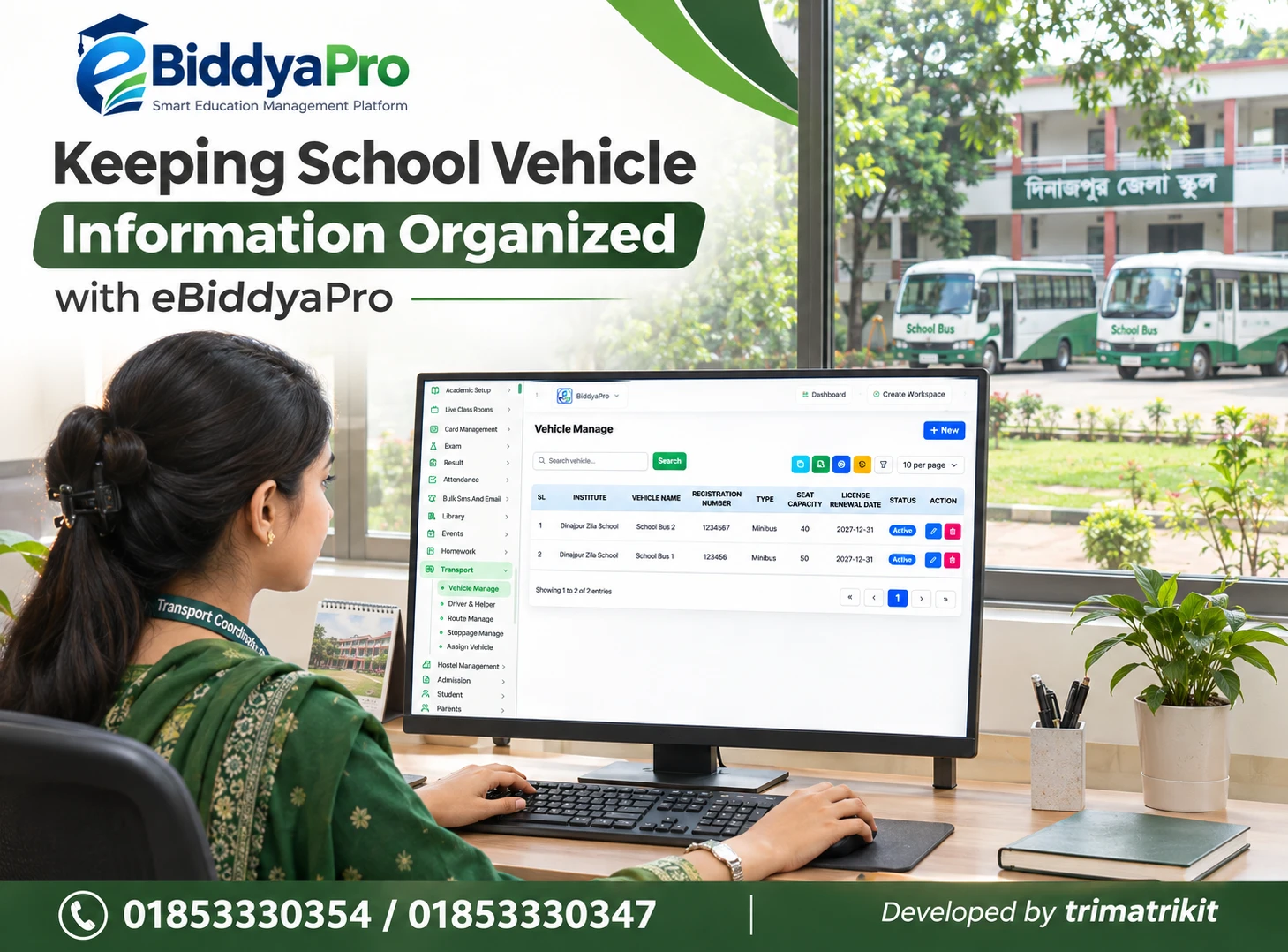
The navigation shows Vehicle Manage as a separate transport area. That distinction is useful: information about a person is different from information about a vehicle.
A complete personnel record does not establish which vehicle the individual is assigned to on a particular day.
Similarly, this listing does not display a route, stoppage, student allocation, or live vehicle position. Those capabilities should be reviewed in their relevant modules if the institution requires them.
For customer explanations, describe the visible benefit precisely: eBiddyaPro provides a place to organize driver and helper information.
Avoid extending that statement into claims about live tracking, automatic route allocation, or parent-facing transport updates unless those functions have been separately demonstrated.
Control Access to Personal Information
Personnel records contain information that may be sensitive or unnecessary for some users’ responsibilities.
A transport coordinator may need contact details, while a designated administrator may need to review identity references. These are different access needs.
OWASP recommends giving users only the permissions required for their work. Applied as a general administrative principle, this supports limiting who can view or change driver and helper information. It does not prove a particular eBiddyaPro permission configuration.
Confirm the available roles and permissions in the school’s setup. Review access when employees change responsibilities.
Avoid circulating complete tables through broad messaging groups when a smaller set of information would meet the operational need.
Review Exports and Printed Outputs Before Sharing
Several toolbar icons are visible above the listing. Their exact actions and output scope should be confirmed through the application rather than inferred only from their appearance.
If export or printing is available, inspect a sample before distributing it. Check which records and personal fields are included.
A contact sheet for an authorized supervisor may require names and phone numbers, while a wider administrative review could require a different selection. The purpose should determine the information shared.
Also check that an output reflects the latest record version. A correctly updated system can still be undermined by an old printed contact list remaining in use.
Clear file names and review dates can help staff distinguish current outputs from earlier copies.
A Practical School Administration Example
Consider a school with several transport personnel. A new administrator is asked to organize the existing information.
The administrator first searches eBiddyaPro for existing records. Names and mobile numbers are compared with the institution’s confirmed list to identify duplicates or outdated details.
Each record is then associated with the correct institute and personnel type. Identity and license references are reviewed through the institution’s approved procedures, with official verification used where appropriate.
After updates are saved, the administrator checks the listing again. A limited contact output is prepared only if the supported tools and permissions allow it.
Daily vehicle assignments remain part of the separate operating process. This example shows how organized records support administration without claiming that the listing completes every transport task.
Frequently Asked Questions
1. What is Driver & Helper Manage in eBiddyaPro?
It is a dedicated personnel listing within the Transport area. The supplied screen brings institutional association, role type, contact information, identity references, license information, and status into one table.
2. Can it store both driver and helper information?
The page title indicates that it is intended for driver and helper management. The visible example is a Driver record. Confirm the available Type options and form rules in your own version.
3. Which fields are visible in the listing?
The screenshot shows Institute, Type, Name, Mobile, Blood Group, NID Number, License Number, Status, and Action. Additional fields may exist in the form, but they are not established by this image.
4. Can I add a new person?
A New button is visible. Open the supported form to confirm required information and validation rules. Search for an existing record first to avoid creating a duplicate.
5. Can I search by phone number?
The main search field mentions mobile as a supported search reference. It also mentions name, NID, and license. Check that the stored number is accurate before relying on the search result.
6. Does Active mean the person is on duty today?
No such meaning is demonstrated. Active is a record status in the screenshot. Daily availability, vehicle assignment, and physical presence require their own confirmation.
7. Does saving a license number verify the license?
No. Storage and verification are different tasks. Use the appropriate official process when verification is required. The screenshot does not demonstrate automatic BRTA verification.
8. Does eBiddyaPro show license expiry in this listing?
No expiry column is visible. Check the creation or editing form for additional fields. Do not assume renewal reminders exist without confirming them.
9. Is NID verification automatic?
The supplied screen does not show an automatic verification result or integration. Treat the field as recorded identity information and follow the institution’s authorized verification process.
10. Should a helper be entered as a driver?
The recorded type should match the person’s actual role. Confirm the available categories rather than using an inaccurate type simply to complete the entry.
11. What if the driver changes their mobile number?
Use the authorized update process, confirm the new number, and check the saved record. Update any necessary contact outputs so staff do not continue using an outdated copy.
12. Can records be edited?
An edit icon is visible in the Action column. The complete editing workflow and permissions are not shown. Confirm important changes and verify the resulting record after saving.
13. Can records be deleted?
A delete icon is visible. Before using it, understand any related records and the institution’s retention needs. Restoration or dependency behavior is not established by the screenshot.
14. Does the page assign a driver to a vehicle?
No vehicle assignment column is visible. Personnel records and vehicle assignments are separate concepts. Confirm the relevant assignment workflow elsewhere in the Transport module.
15. Does it provide live vehicle tracking?
The listing does not demonstrate live tracking. It shows personnel information. Any tracking capability would need separate confirmation and should not be inferred from this page.
16. Can parents view the driver’s information?
Parent access is not demonstrated. Confirm permissions and any parent-facing transport features before sharing information or promising access.
17. Does entering a mobile number enable automatic SMS?
Not by itself. The screen does not demonstrate an SMS trigger or communication workflow. Contact storage and automated messaging require separate configuration and verification.
18. What should I do about duplicate records?
Compare names and other authorized identifiers to establish which records refer to the same person. Review their relationships before deleting or changing anything. Seek support if the correct resolution is unclear.
19. Is blood group information medically verified?
A stored value is not a medical verification result. Record it through the institution’s approved process and do not use the listing as a substitute for clinical checks.
20. Can I organize records by branch?
A Branch column is not visible in the supplied listing. The Institute column is present. Confirm where branch relationships are managed if the school requires that distinction.
21. Can I export or print the list?
Toolbar controls are visible, but their precise behavior should be confirmed. If an output is supported, inspect its record scope and personal fields before sharing it.
22. How often should the records be reviewed?
Review them when personnel join, leave, change roles, or update contact or document information. An institution can also schedule periodic reviews according to its needs. The screenshot does not demonstrate automatic review reminders.
Build a Dependable Transport Personnel Record
eBiddyaPro Driver & Helper Manage provides a structured place to organize school transport personnel information. Its practical value comes from keeping the records accurate, current, and connected to the correct institution and role.
Use the listing alongside clear responsibilities for identity review, license verification, updates, and access. Keep daily duties and vehicle assignments distinct from general record status.
For guidance on organizing your school’s transport personnel records with eBiddyaPro, contact 01853330354 or 01853330347.
Recent Post