EAS Security
 EAS Gate
 Security Tag
 EAS Accessories
 Gadgets
 Convex Mirror
 Road Barrier
 Burglar Alarm
 Calling System
Reviewing Attendance by Shift, Department, and Date Range in eHajira
November 14, 2026
Reviewing Attendance by Shift, Department, and Date Range in eHajira
Attendance figures become useful when they can be connected to the right working arrangement. A late arrival must be assessed against the applicable shift. An absence needs to be reviewed within the employee’s expected schedule. A departmental comparison requires a clearly defined period and a consistent understanding of what each number represents.
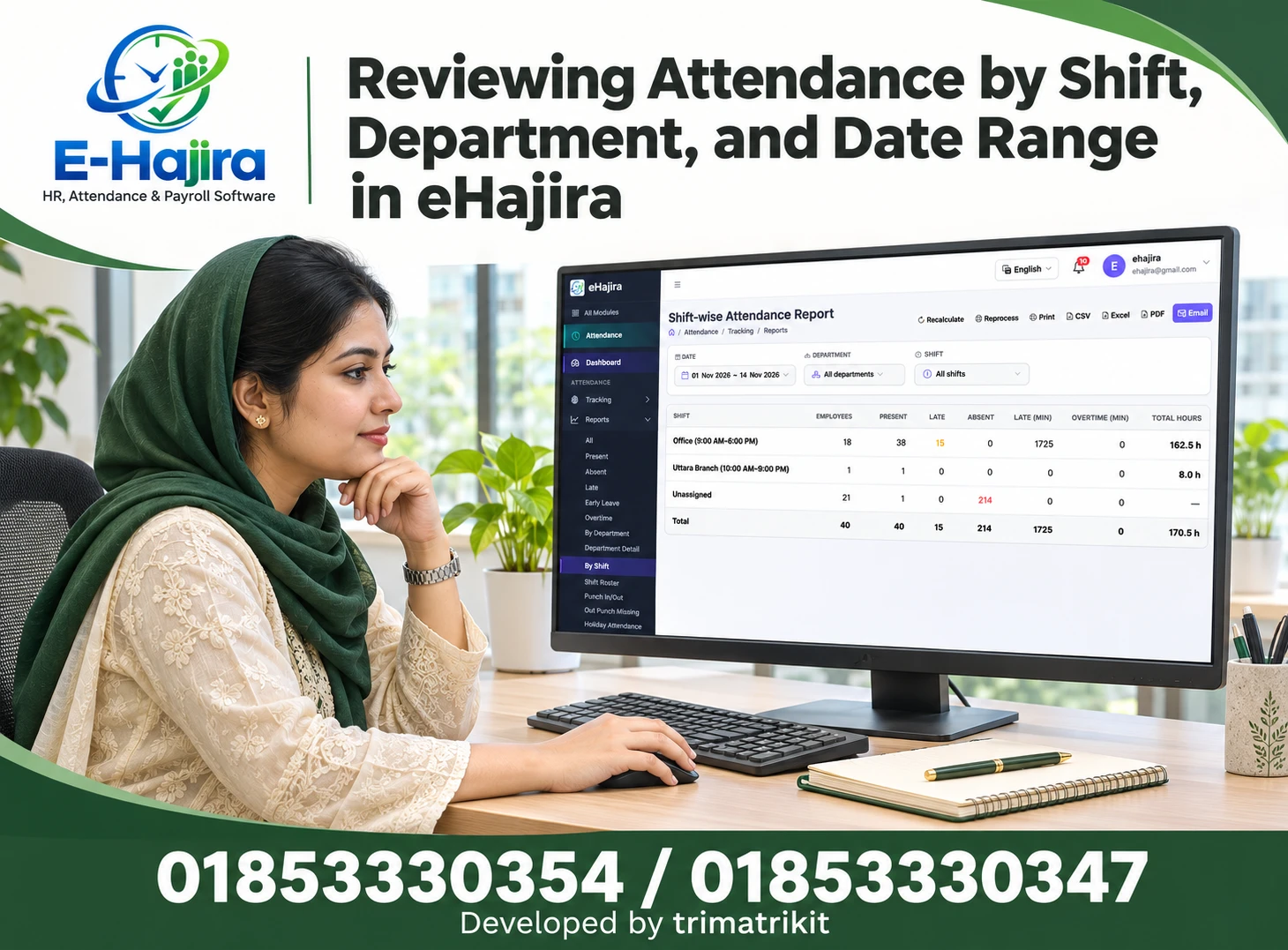
The eHajira Shift-wise Attendance Report brings these questions into a single summary view. Administrators can select a date range, department, and shift, then examine reported employee counts, attendance totals, late minutes, overtime minutes, and total hours.
For organizations in Bangladesh, this can support attendance administration across offices, service teams, retail operations, technical departments, and other workplaces with different schedules. However, a grouped report requires careful interpretation. In particular, an “Unassigned” row or an unexpectedly large employee total should prompt investigation rather than an immediate conclusion.
This guide explains how to use the supplied eHajira report as a starting point for attendance review, how to interpret its visible fields, and how to investigate results before using them in management discussions or payroll preparation.
Understanding the Shift-wise Attendance Report
A shift-wise report groups attendance information according to the shift categories recognized by the reporting process. Its purpose differs from a daily employee list because each row summarizes a working arrangement rather than displaying every person and date separately.
The supplied eHajira screen contains rows for Office, Uttara Branch, and Unassigned. The named shifts include their displayed start and end times.
The columns show Employees, Present, Late, Absent, Late (Min), Overtime (Min), and Total Hours. A Total row appears beneath the shift groups.
This arrangement provides a compact overview. It can identify where records are being grouped and which results require closer attention. It does not, by itself, explain the individual attendance events contributing to every total.
What the Supplied Screenshot Establishes
The selected period is 1 November to 14 November 2026. Department is set to All departments, while Shift is set to All shifts.
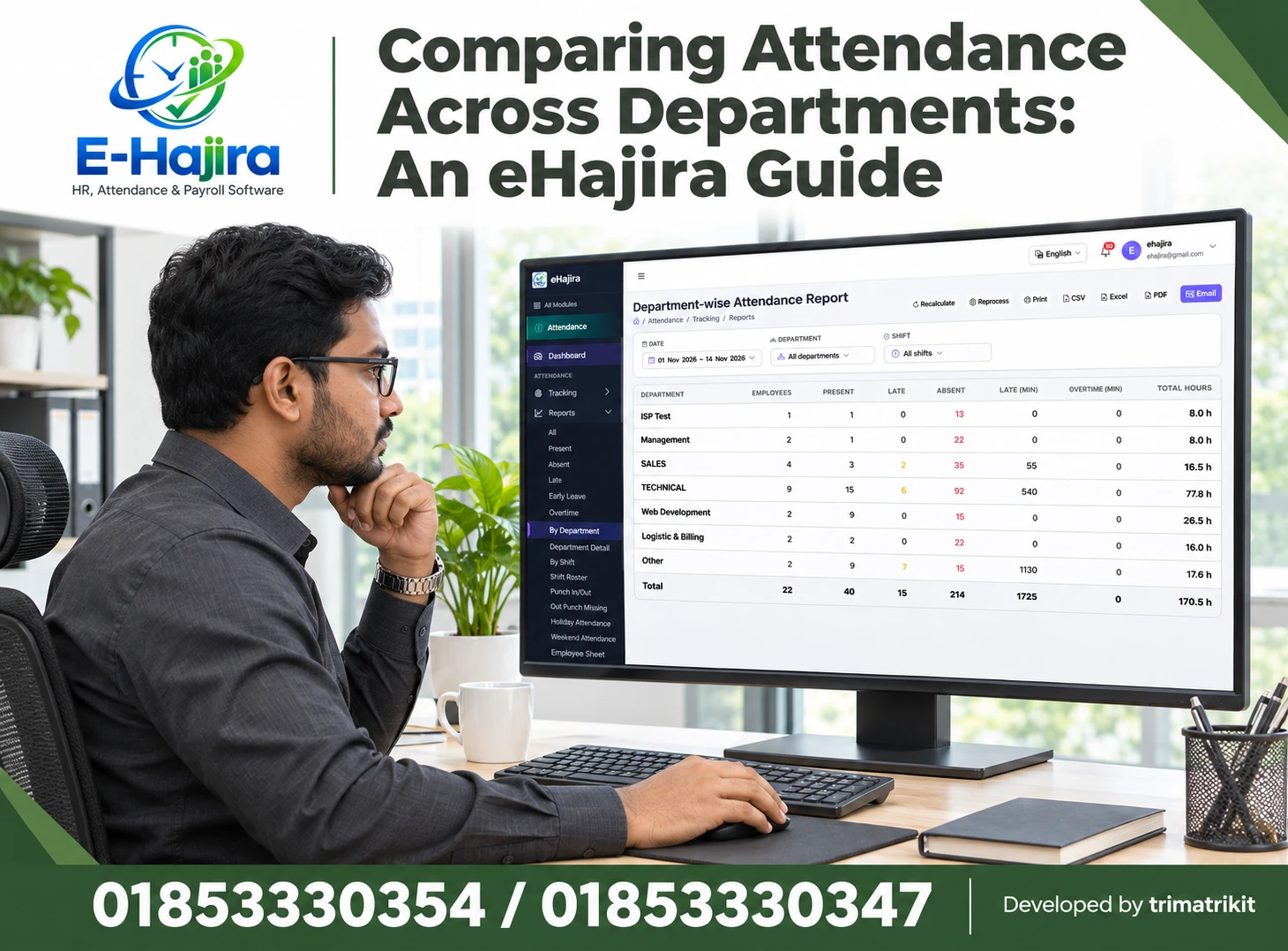
The Office row displays eighteen employees, thirty-eight Present, fifteen Late, zero Absent, 1,725 late minutes, zero overtime minutes, and 162.5 total hours.
The Uttara Branch row displays one employee, one Present, zero Late, zero Absent, and eight total hours. The Unassigned row displays twenty-one employees, one Present, zero Late, 214 Absent, and a dash under Total Hours.
These are observations from the supplied demonstration screen. They should not be presented as verified organizational performance or as representative statistics for businesses in Bangladesh. Their main value here is to illustrate the interpretation questions an administrator should ask.
Research Context for Shift-based Review
Published eHajira supplier information describes the By Shift report as separating attendance information by shift. It also describes Shift Roster and Punch In/Out reports as related sources for reviewing assignments and attendance times. These descriptions support the general workflow of moving from a grouped summary to more detailed information, although the actual installation’s behavior still needs confirmation.
ILOSTAT distinguishes working-time concepts such as hours actually worked, hours paid for, and normal working hours. That distinction matters when interpreting a column called Total Hours: its specific meaning must be established before treating it as paid time or another measure. The ILO definitions do not establish eHajira’s calculation formula.
A reliable review therefore combines the software’s documented definitions with the institution’s schedules and underlying records.
Why This Matters for Organizations in Bangladesh
A Bangladeshi organization may operate a standard office schedule while assigning different hours to technical or customer-facing teams. Some employees may also have approved work outside their usual office.
A single arrival or departure time can have different meanings under these arrangements. An employee arriving at 9:30 AM might be late for one shift and early for another.
Shift-based review helps administrators retain that context. Department filtering can then narrow the analysis to a particular team, while the date range determines the period being examined.
The practical benefit is a more focused investigation. Instead of treating all attendance differences as employee behavior, HR can examine whether schedules, assignments, source records, and report scope explain the results.
Define the Question Before Selecting Filters
Start with the decision the report needs to support. Are you investigating late arrivals in the office shift, checking records for one department, or examining why absences appear under Unassigned?
Each question needs a different reporting scope.
A broad report can reveal a pattern, but a narrow report is often more useful for explaining it. For example, all departments and all shifts may help locate an unusual group. A selected department and shorter date range may then help isolate the relevant employees and dates.
Keep the question clear throughout the review. Avoid beginning with punctuality and ending with conclusions about productivity or salary without obtaining the additional information those conclusions require.
Select an Appropriate Date Range
The Date filter controls the period being summarized. In the supplied example, the report spans fourteen calendar dates.
That does not mean every employee was scheduled to work on all fourteen dates. Applicable working days can differ because of schedules, joining dates, holidays, leave arrangements, and other factors.
When investigating an unexpected value, a shorter period can make reconciliation easier. Once the specific events are understood, the broader range can be reviewed again.
For recurring management reports, use consistent periods and record the exact dates. Comparing a full month with a partial month without explanation can produce misleading impressions even when every underlying record is correct.
Use Department to Narrow the Organizational Scope
The Department filter helps connect shift information with the team being reviewed.
For example, an administrator investigating the office shift within a technical department can select that department rather than include every employee using the shift across the organization.
However, department membership may change during the period. The screenshot does not establish whether grouping follows current assignments, historical assignments, or another rule.
If an employee transferred departments, confirm how their attendance is allocated. A correct current profile does not necessarily explain an earlier reporting period. This distinction is particularly relevant when comparing departments before and after staffing changes.
Use Shift to Isolate a Working Arrangement
The Shift filter allows the review to focus on a selected schedule. This is useful when employees within one department follow different working hours.
Before interpreting the result, confirm that the chosen shift is the intended one. Similar names or overlapping times can lead to the wrong selection.
Also distinguish a shift’s name from its operational scope. The example includes a shift named Uttara Branch, but a location-related name is not proof that the filter includes every employee associated with that branch.
The supplied page does not display a separate Branch filter. Branch-level conclusions therefore require confirmation of the actual relationships rather than relying on the wording of a shift label.
Read Shift Names and Times Together
The Office row displays 9:00 AM–6:00 PM, while Uttara Branch displays 10:00 AM–9:00 PM.
These times provide useful context, but the screenshot alone does not establish break treatment, paid hours, overtime eligibility, or whether special arrangements apply on particular dates.
An eleven-hour displayed span should not automatically be described as eleven paid working hours. Likewise, a nine-hour span does not establish the final payable duration.
If a shift definition was changed recently, check its effective use for the dates being reviewed. A current label may not provide a complete explanation of historical assignments or calculations.
Understand the Employees Column Before Using Its Total
The supplied Total row displays forty under Employees. That value should not automatically be described as forty unique people in the organization.
The screenshot does not define whether employees are counted uniquely within each group, whether the same person can contribute to several groups during the period, or whether the Total row adds group counts.
An employee may have different attendance contexts across dates, but the screenshot does not prove that this is the cause of the displayed result.
Before using Employees as a headcount or denominator, confirm its definition and reconcile employee identities where necessary. A grouped employee total and an independently deduplicated workforce count answer different questions.
Why Present Can Be Larger Than Employees
The Office row shows eighteen employees and thirty-eight Present. This demonstrates why the Present figure cannot simply mean thirty-eight different employees.
Across a multi-day period, the same employee can contribute attendance information on several dates. The exact counting rules should still be confirmed in the installation.
Use careful language when presenting the result. “The Office shift has thirty-eight reported Present entries during the selected period” is more defensible than saying thirty-eight people attended.
This distinction also prevents invalid percentages. Dividing a multi-day attendance count by a group headcount without considering work opportunities does not produce a meaningful attendance rate.
Do Not Assume Present and Late Are Separate Categories
Present and Late appear as adjacent columns, but their relationship is not defined by the table layout.
A late arrival may also count as attendance under the reporting rules. If that is the case, adding Present and Late would count some information twice.
Confirm whether the categories overlap before calculating totals, rates, or comparisons. The report does not show every possible attendance classification, so adding the visible columns may also fail to represent the complete schedule.
This is a definition issue rather than an arithmetic issue. A calculation can be numerically correct while answering the wrong question.
Review Late Events and Late Minutes Separately
The Office row displays fifteen Late and 1,725 late minutes. One figure concerns the reported count; the other concerns duration.
If both columns refer to the same fifteen events, the arithmetic average would be 115 minutes per event. That is a conditional calculation from the displayed figures, not a separately confirmed built-in metric.
Before using that average, verify the event definition and underlying records. Averages can conceal whether delays are spread across many employees or concentrated in one person’s records.
For management discussion, frequency and duration should remain distinguishable. Repeated short delays and fewer long delays may require different questions and responses.
Treat Unassigned as a Group Requiring Explanation
The Unassigned row deserves attention because a large number of absence records appears there in the supplied example.
At the level of this screen, the label indicates that records are being presented under an Unassigned category. It does not establish the exact technical reason.
Possible investigation areas include effective shift assignments, historical schedules, and how attendance records are associated with shifts. These are hypotheses to test, not conclusions about the screenshot.
Do not assume that every employee in the group has no current shift. A person’s current profile and the shift context attached to a particular attendance date may differ.
Unassigned Does Not Mean Absent
The supplied Unassigned row contains one Present as well as 214 Absent. This is direct evidence that Unassigned and Absent are not interchangeable labels in the displayed report.
Unassigned describes a grouping context. Absent is an attendance-related value within that group.
Calling all Unassigned records absences would erase the distinction and misrepresent the visible data. Similarly, an absence appearing in Unassigned does not explain why that absence was classified.
Investigate the group membership and attendance status separately. One question concerns where the record belongs; another concerns whether its attendance information is correct.
Investigate the Unassigned Absence Total
The 214 displayed absences should lead to a record-level investigation before any conclusion about employee conduct.
Identify the relevant employees and dates through available detailed reports. Compare those records with expected schedules, applicable leave information, and source attendance data.
Then determine whether the records were grouped appropriately and whether their classifications are supported.
A large total can result from repeated records across many dates. It is not a count of 214 different people. It also does not independently establish 214 unauthorized absences.
The summary identifies the scale of a question. The underlying information is needed to explain it.
Zero Absence in a Named Shift Needs Context
Both named shifts display zero Absent, while the Unassigned group carries the displayed absence total.
It would be premature to conclude that the named shifts achieved perfect attendance. First establish how the reporting process associates absence records with shift groups.
If relevant absence records are grouped elsewhere, a zero within a named row does not describe the whole attendance experience of everyone connected with that shift.
This is why report structure matters. Understand the grouping rule before treating row-level values as a performance score. The screenshot alone does not resolve the allocation logic.
Interpret Total Hours and Dashes Carefully
Office displays 162.5 hours and Uttara Branch displays eight hours. Their visible sum is 170.5 hours, matching the displayed Total Hours figure.
Unassigned shows a dash. That symbol should not automatically be converted into a confirmed zero, missing value, or evidence that no work occurred.
Confirm the software’s display convention before using the value in calculations. Also establish what Total Hours includes and excludes.
Where decimal hours are used, 162.5 means 162 hours and thirty minutes. It does not mean 162 hours and five minutes. Exported precision and rounding should also be checked when reconciling detailed records.
Zero Overtime Is a Report Result
The visible rows show zero Overtime (Min). This means the report displays zero calculated overtime minutes for the selected scope.
It does not independently prove that employees never stayed beyond scheduled hours. Recognized overtime may depend on rules and information not visible in this summary.
If overtime is under review, inspect the relevant times and confirm the applicable calculation and authorization arrangements.
Avoid combining physical presence, recognized overtime, and payable overtime into one assumption. The report’s meaning must be established before it supports financial or operational conclusions.
Review Overnight and Changing Shifts
An overnight shift can begin on one calendar date and end on another. Attendance dates and punch dates may therefore require careful interpretation.
When investigating such a case, review the complete start and end date-times and the working date to which the system associates the record.
Changing shifts also require attention to effective dates. A correct current assignment may not explain records from an earlier week.
The supplied screenshot does not demonstrate overnight processing or assignment precedence. Confirm those behaviors through the actual installation rather than applying a universal assumption about the last punch, calendar midnight, or current shift.
Use Related Reports to Explain the Summary
The navigation includes Shift Roster and Punch In/Out, along with attendance logs and other reports.
Where available, roster information can help establish intended assignments, while detailed attendance information can help explain recorded times. The exact fields and navigation behavior should be confirmed in the installation.
Keep the same date range and relevant department selection while reconciling results. Otherwise, differences between reports may simply reflect different scopes.
The screenshot does not demonstrate a clickable drill-down from each shift row. Describe the workflow according to what is actually available rather than promising automatic navigation.
Recalculate and Reprocess with a Defined Purpose
Recalculate and Reprocess appear as separate controls. Their names do not establish their complete behavior or make them interchangeable.
Before using either, confirm the affected period, information sources, and treatment of existing adjustments.
If a correction is necessary, identify its cause and use the supported process. Then compare the results with the earlier report.
Repeated processing without understanding the discrepancy can make the review harder to explain. The objective is a traceable correction, supported by the relevant records, rather than simply producing a different total.
Prepare Fair Comparisons and Useful Outputs
Meaningful comparisons require compatible periods, verified definitions, and suitable denominators. A shift with more employees or scheduled days can naturally generate larger totals.
For an absence rate, verified scheduled employee-days may be needed. For punctuality, eligible scheduled starts may be the relevant basis. Neither denominator is fully provided by this summary.
The page offers Print, CSV, Excel, PDF, and Email controls. Review the resulting output to confirm its dates, filters, units, totals, and completeness.
When sharing findings, separate observation from explanation. “Absences are displayed under Unassigned” is an observation. The reason they appear there requires investigation.
A Practical Review Example
Imagine a fictional service organization reviewing one fortnight. HR notices that most reported absences appear in Unassigned, while named shifts show none.
The administrator narrows the report by department and examines relevant employee-date records. Some require assignment review, while others need attendance or leave information checked.
After resolving supported corrections, the team follows the appropriate processing instructions and reviews the same period again.
The outcome is an explanation of the records and their grouping. The purpose is not to remove an uncomfortable number, but to ensure that the report represents verified information accurately.
Frequently Asked Questions
1. What does the Shift-wise Attendance Report show?
It summarizes attendance information by shift group. The supplied columns include employee counts, Present, Late, Absent, late minutes, overtime minutes, and total hours.
2. Which filters are visible?
The screenshot shows Date, Department, and Shift. It does not show a separate Branch or Designation filter on this page.
3. Why select the date range first?
Every total depends on the reporting period. A multi-day count should not be interpreted as a single day’s attendance or unique headcount.
4. Does fourteen calendar days mean fourteen working days?
No. Expected workdays depend on the applicable schedules and individual circumstances. Verify the relevant work opportunities before calculating rates.
5. How does Department help?
It narrows the organizational scope, allowing a shift to be reviewed within a particular team rather than across all departments.
6. Does a location-named shift represent an entire branch?
Not necessarily. A shift called Uttara Branch is still a shift label. Its relationship to branch membership needs confirmation.
7. Does Employees Total mean unique workforce headcount?
The screenshot does not establish that definition. Confirm whether group memberships overlap and how the Total row is calculated.
8. Can one employee contribute to different shift groups?
That may depend on assignments and reporting rules. Verify the actual behavior rather than assuming either exclusive or overlapping membership.
9. Why does Present exceed Employees?
A multi-day period can contain repeated attendance contributions from the same people. Confirm the count’s exact definition before using it.
10. Can Present and Late be added?
Only after establishing that their definitions are mutually exclusive. Otherwise, adding them may double-count attendance information.
11. What is the difference between Late and Late Minutes?
They represent a reported count and a reported duration. Their exact relationship should be confirmed before deriving averages.
12. What does Unassigned mean?
It is the grouping label shown for certain records. The precise reason those records appear there requires investigation of the installation’s assignments and reporting behavior.
13. Does Unassigned mean everyone is absent?
No. The supplied Unassigned row contains both Present and Absent values, demonstrating that the group and attendance classifications differ.
14. Does Unassigned prove employees have no current shift?
No. Current assignments and historical record grouping may differ. Review the relevant dates and underlying information.
15. Does zero absence prove perfect attendance?
Not without understanding allocation and classification rules. Relevant absence records may appear in another group, as the screenshot prompts administrators to investigate.
16. Is a dash in Total Hours a confirmed zero?
That is not established. Confirm the display convention before replacing it with a numeric value or including it in calculations.
17. Does Total Hours mean payable time?
Not automatically. The report’s calculation and its relationship with payroll need confirmation.
18. What does 162.5 hours mean?
In decimal-hour notation, it means 162 hours and thirty minutes. Check rounding and precision when comparing detailed information.
19. Does zero overtime prove nobody worked extra time?
No. It establishes the displayed calculated value for the selected scope, not every detail about physical presence or authorized extra work.
20. How should overnight shifts be reviewed?
Examine complete date-times and the assigned working date. Confirm how the actual system handles shifts extending past midnight.
21. Are Recalculate and Reprocess interchangeable?
No such assumption should be made. They are separate controls whose purposes and effects should be understood before use.
22. Can this report directly determine payroll adjustments?
The summary alone is insufficient. Verify records, assignments, approvals, and applicable institutional processes before making financial decisions.
Make Shift Reports Explainable
The eHajira Shift-wise Attendance Report offers a useful overview when its filters, grouping rules, and metrics are understood.
Use date ranges deliberately, narrow the scope by department and shift, and investigate Unassigned records separately from attendance classifications. Confirm employee-count definitions before treating totals as headcount, and review underlying information before drawing conclusions.
For assistance with eHajira shift attendance reporting and related setup, contact 01853330354 or 01853330347.
Recent Post